
=AI("prompt", range) next to a bank description and let Gemini suggest a category. Name the exact categories in the prompt, then check the results before you trust them.Bank exports are messy. A line like "FACEBK ADS 8841" is easy for a person to place and tedious to sort by hand across hundreds of rows. Google documents the AI function as a way to categorize, summarize and generate text from cells. Here is how to use it for expenses, with prompts you can copy. All data in the sample is made up.
What you need first
Google's help page says the feature needs an eligible Google Workspace or Google AI plan, and it is also offered through the Workspace Experiments program. If you see "AI function not available", your account does not have it yet. In that case use a lookup table or sort by hand; the template below still works.
How to categorize expenses with the AI function
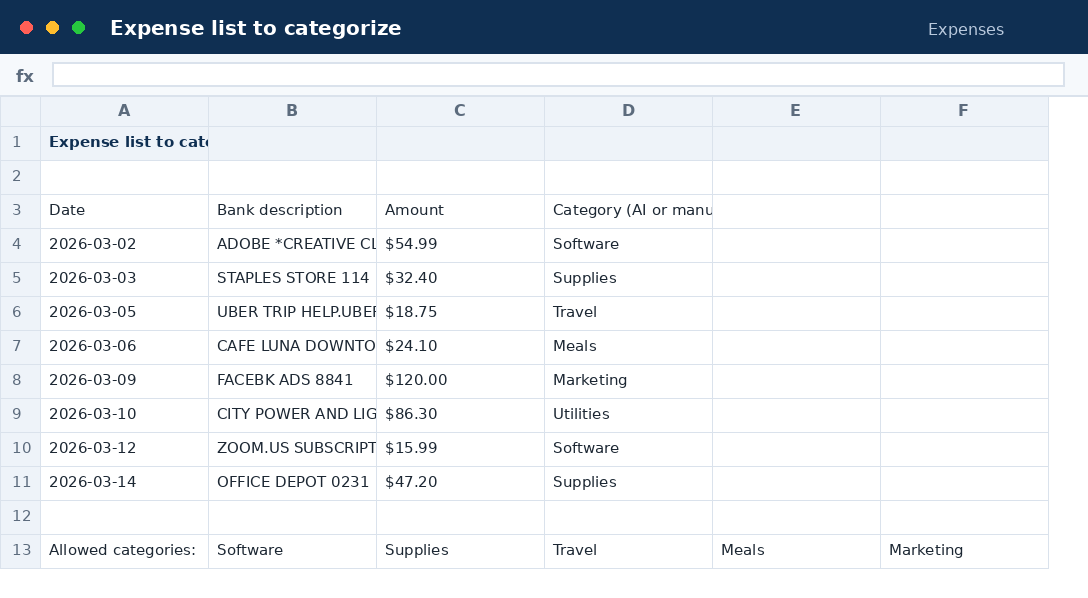
1. Put your bank description in one column and the amount in the next. 2. Write your allowed categories somewhere on the sheet, for example Software, Supplies, Travel, Meals, Marketing and Utilities. 3. In the category column, enter a prompt that names those categories and asks for the label only:
=AI("Categorize this bank transaction as exactly one of: Software, Supplies, Travel, Meals, Marketing, Utilities, Other. Reply with the category only. If unsure, reply Other.", B4:C4)
4. Select the cell and click Generate and Insert, then fill the column down. Google's help page describes this step and says you can use =AI() or =Gemini(). 5. Scan the results and fix mistakes by hand.
Why the prompt matters
A vague prompt like "categorize this" gives you a new label style every time. Listing the allowed categories and adding "if unsure, reply Other" keeps the output clean enough to total with SUMIF. Including the amount in the range gives the model a little more context, such as telling a $15 software charge from a $1,500 one.
Limits you should know about
- Per Google, responses are text only.
- The function does not see your whole spreadsheet or your Drive files. It only sees the range you pass in, so include the context you want it to use.
- You cannot undo or redo the function; you regenerate the output instead.
- Embedded use is not supported, for example wrapping
AI()insideIF(). - Results can be wrong. Treat them as suggestions, especially for tax or accounting records.
Also think about privacy. Do not send customer or financial data to an AI service unless your policy allows it.
Related
No AI access? Use the Google Sheets expense tracker with fixed categories. For Excel, see the small business expense tracker spreadsheet. For full records, use the free bookkeeping Excel template.
Download the free file
The bottom line
The AI function saves time on a first pass, not on the final check. Name your categories, review the output and keep a human in the loop.
Source: Google Docs Editors Help, "Use the AI function in Google Sheets" (support.google.com/docs/answer/15877199), checked November 29, 2026.