
To use SUMIFS between two dates in Excel, you give the function one range to add up and two date rules: one for "on or after the start" and one for "on or before the end". This guide shows the exact formula, how to point it at date cells, and how to fix the usual mistakes. It also covers SUMIFS with "not equal to" and "contains" text rules. All the data is made up.
The SUMIFS between two dates formula
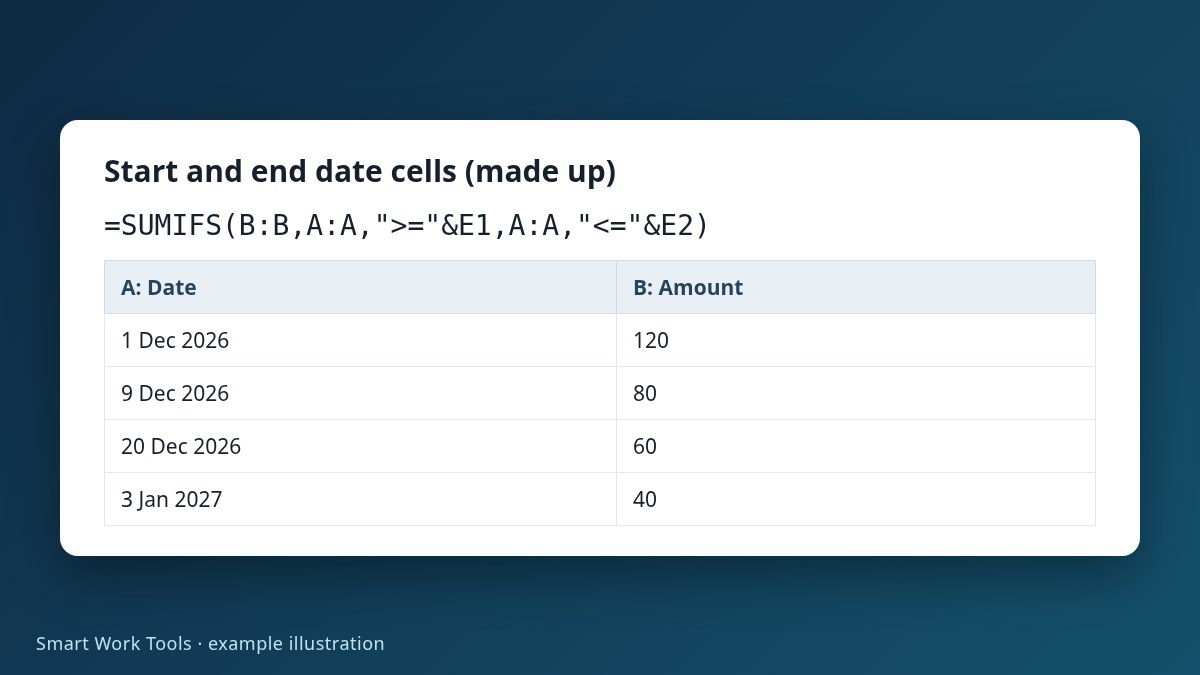
Say column A holds order dates, column B holds amounts, the start date is in E1 and the end date is in E2. Use:
=SUMIFS(B:B, A:A, ">="&E1, A:A, "<="&E2)
The first argument is the range to add. Each pair after it is a range and a rule. The & joins the comparison sign to the date in the cell. Both rules must be true for a row to count.
Step by step
- Make sure the dates in column A are real dates, not text. Real dates align to the right by default.
- Type the start and end dates in two cells, such as E1 and E2.
- Enter the formula in a third cell.
- Change E1 or E2 and watch the total update.
SUMIFS with dates typed into the formula
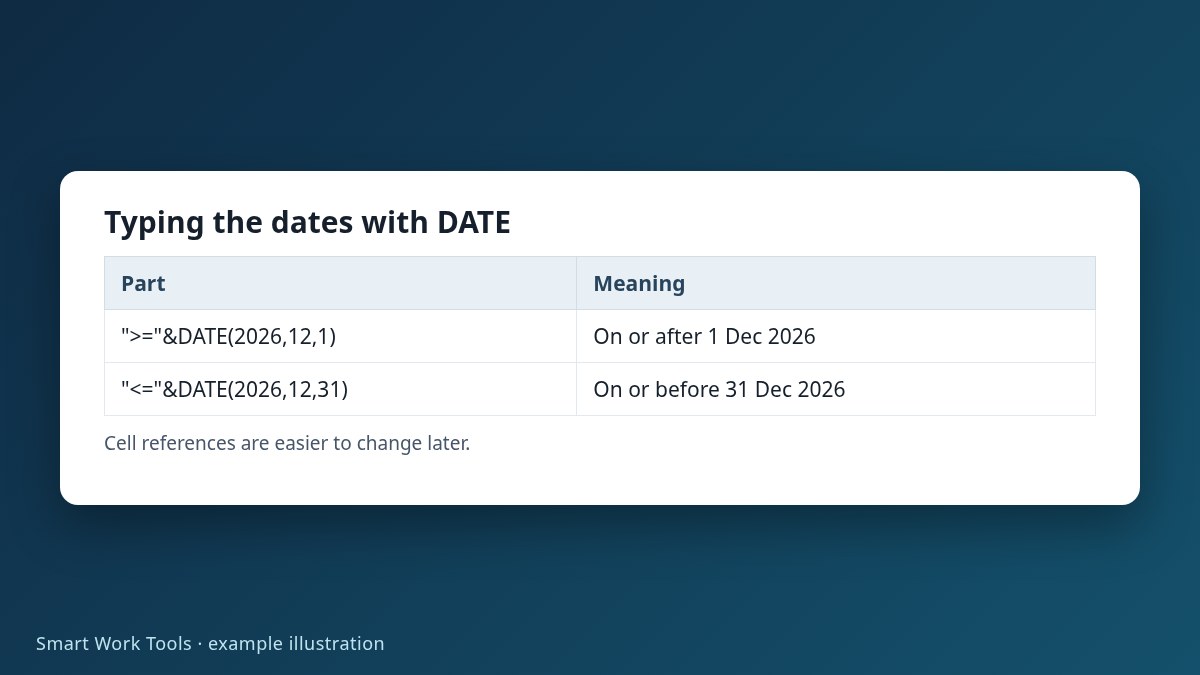
You can also type the dates in. Use the DATE function so the formula works in any regional setting:
=SUMIFS(B:B, A:A, ">="&DATE(2026,12,1), A:A, "<="&DATE(2026,12,31))
This adds the amounts for December 2026. Cell references are easier to change later, so prefer them.
Excel SUMIFS not equal to text
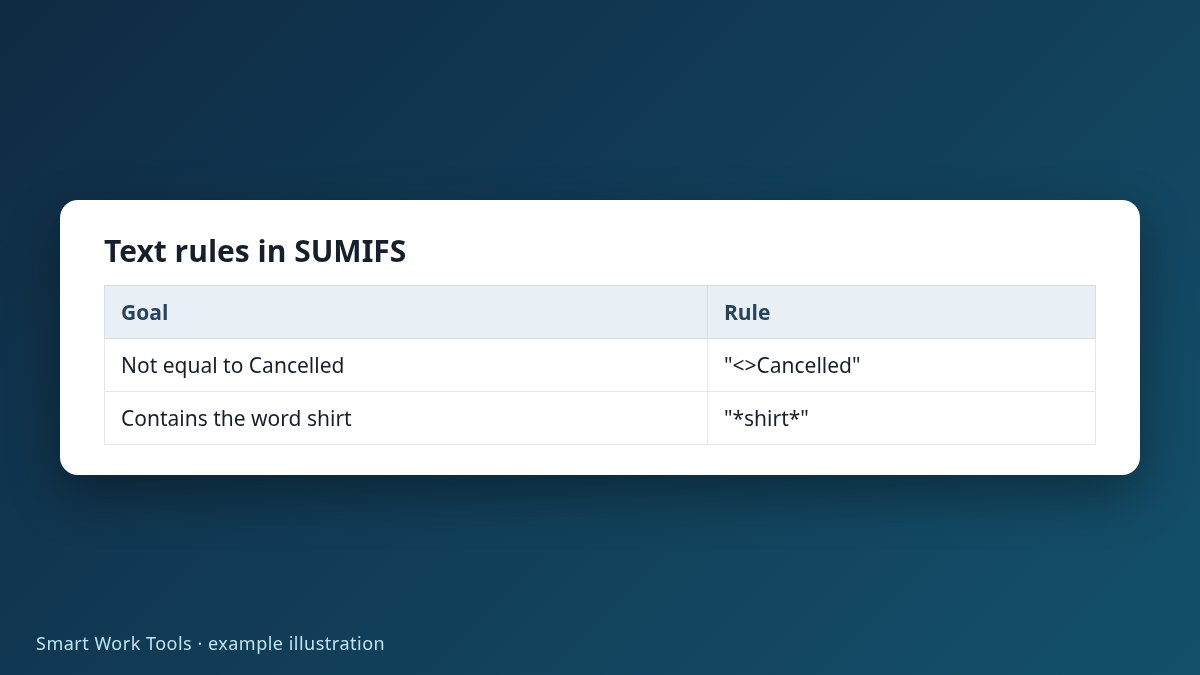
To leave one value out, use the not equal sign. For example, to add amounts where the status in column C is not Cancelled:
=SUMIFS(B:B, C:C, "<>Cancelled")
You can add the date rules to the same formula to combine all the conditions.
Excel SUMIFS contains partial text
Wildcards let you match part of a text value. An asterisk stands for any number of characters:
=SUMIFS(B:B, D:D, "*shirt*")
This adds amounts for every row where column D has the word shirt anywhere in the text.
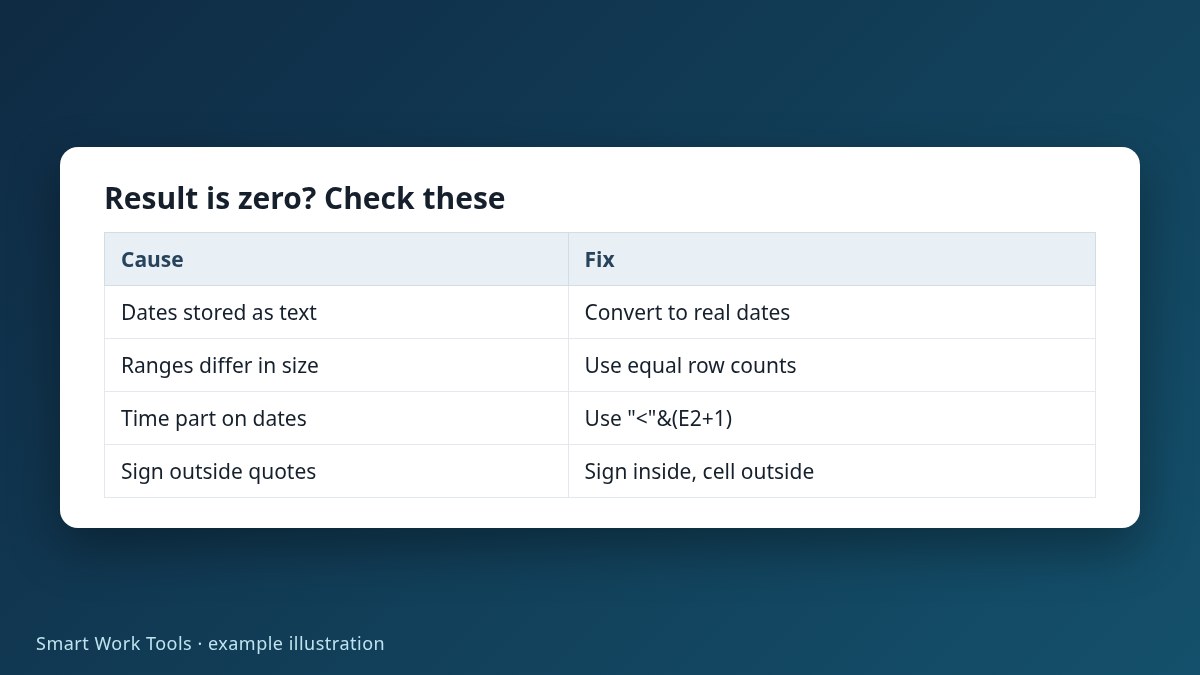
Common SUMIFS date mistakes
- The result is zero. The dates may be stored as text. Convert them to real dates.
- Ranges are different sizes. Every range must have the same number of rows.
- Dates with a time part. A date with a time can fall after your end date. Use "<"&(E2+1) to include the whole last day.
- Quotes around the sign. The sign goes inside quotes, and the cell reference goes outside.
SUMIFS between two dates: common questions
Does the same formula work in Google Sheets?
Yes, SUMIFS works in Google Sheets with the same arguments. See our guide to SUMIF with multiple criteria.
What is the difference between SUMIF and SUMIFS?
SUMIF takes one rule. SUMIFS takes many rules, and its first argument is the range to add.
Can I sum by month without typing dates?
Yes. Build a pivot table and group the dates by month.
Related guides on Smart Work Tools
Read XLOOKUP vs VLOOKUP and Excel automation tips, or flag late items with conditional formatting.