
These Excel automation tips help you stop repeating the same clicks every day. You do not need to write code to start. This guide covers how to automate repetitive tasks in Excel with tables, Flash Fill, formulas, Power Query and recorded macros, in the order you should try them. Menu names can differ a little between Excel versions.
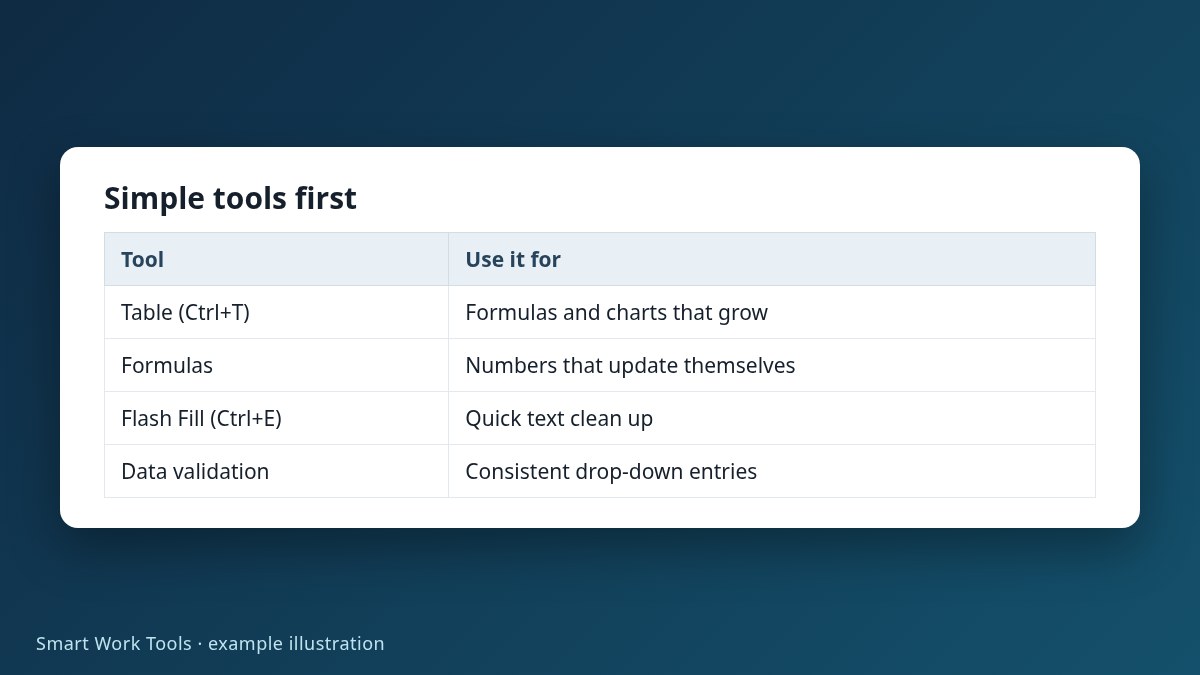
Start with the simplest Excel automation tips
Before you touch macros, fix the basics. Many "repeat" jobs disappear when the sheet is set up well:
- Use tables. Click a cell in your data and press Ctrl+T. Formulas, formats and charts grow with new rows.
- Use formulas instead of typing. A formula updates itself when the data changes.
- Use data validation for drop-down lists, so entries stay consistent.
- Use conditional formatting to flag late items without checking by eye.
Flash Fill: automate text clean up
Flash Fill spots a pattern from your example and fills the rest. Type the result you want in the first row, start the second row and press Ctrl+E. It works well for splitting names, joining parts and fixing case. Check the results, because it guesses from a pattern.
How to automate repetitive tasks in Excel with formulas
If you copy numbers between sheets by hand, replace that with a lookup. Our guide to XLOOKUP vs VLOOKUP shows which to use. For totals by condition, see SUMIF with multiple criteria, since the same idea works in Excel. A pivot table then turns the rows into a summary that refreshes with one click.
Power Query: automate importing and cleaning data
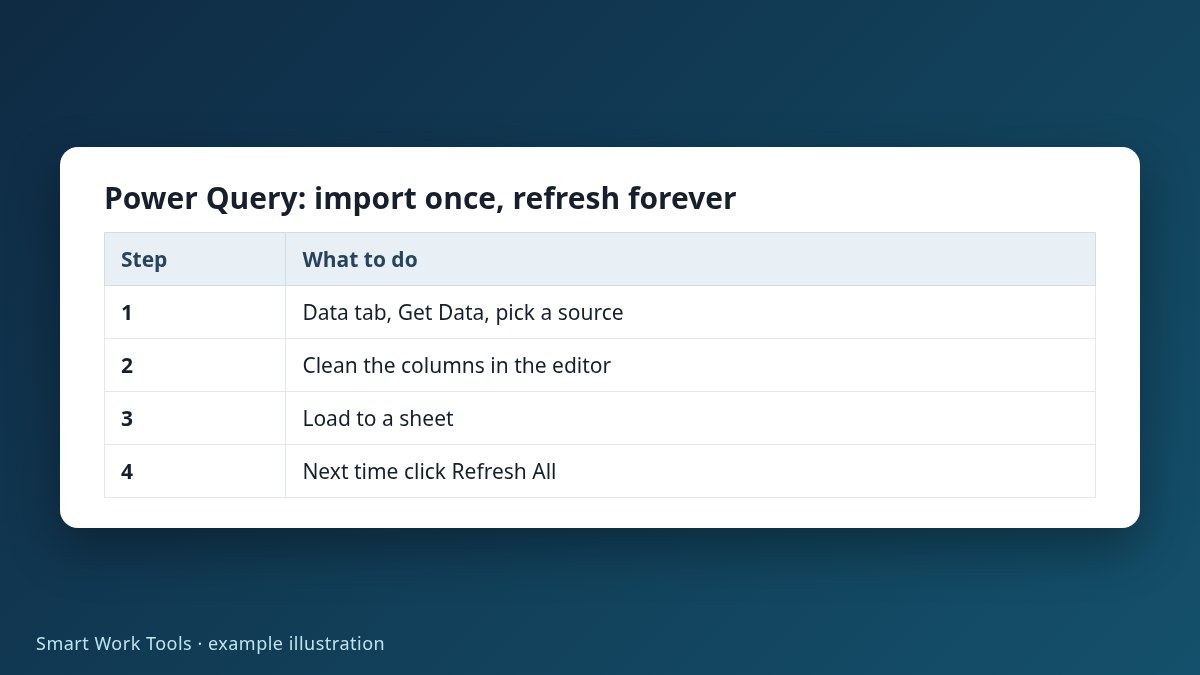
If you import the same file every week and clean it the same way, Power Query can remember the steps. On the Data tab, choose Get Data, pick your source, then clean the columns in the editor. Next time, click Refresh All and the same steps run again. It is a strong choice when the job is repeat clean up, with no coding.
How to use Excel macros to automate tedious tasks
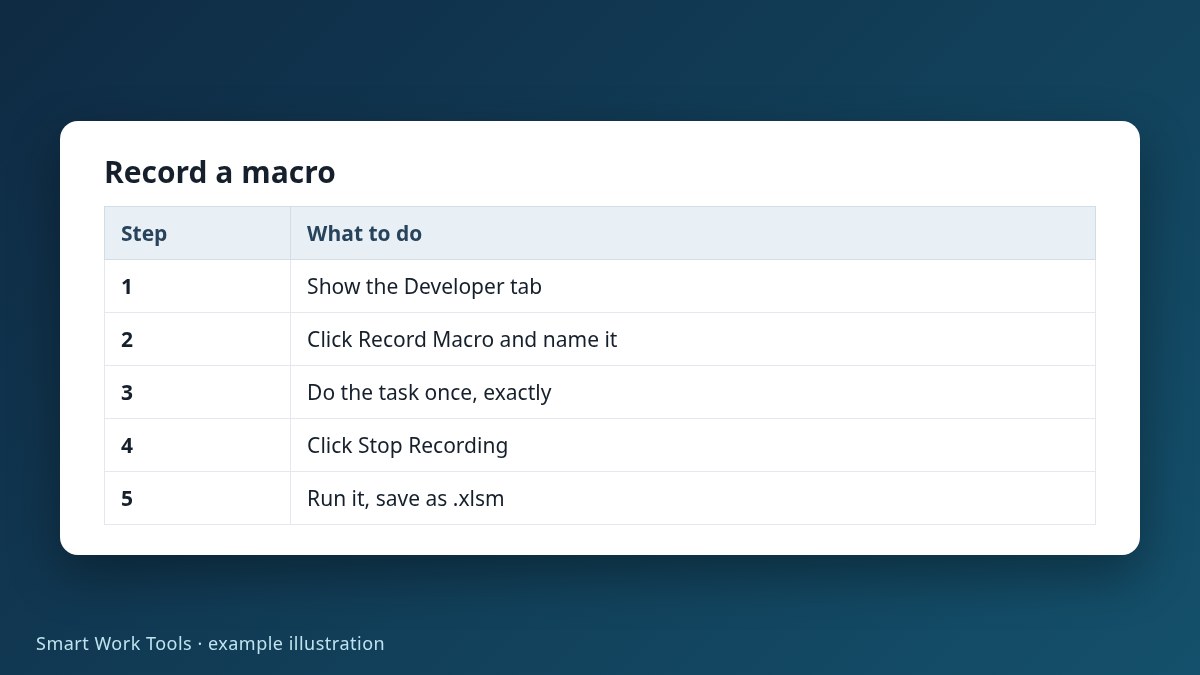
A macro records your clicks and replays them. To record one:
- Show the Developer tab if it is hidden (File, Options, Customize Ribbon).
- Click Record Macro, give it a name and choose where to store it.
- Do the task once, slowly and exactly.
- Click Stop Recording.
- Run it from the Macros button, or assign it to a shortcut or button.
A workbook with macros must be saved as a macro-enabled file (.xlsm). Only run macros from sources you trust, because macros can run code on your computer.
Excel VBA tips for beginners
- Record first, then open the Visual Basic editor (Alt+F11) to read what was written.
- Change one small thing at a time and test on a copy of your file.
- Keep a backup, because macro actions often cannot be undone.
- Name your macros clearly, such as FormatWeeklyReport.
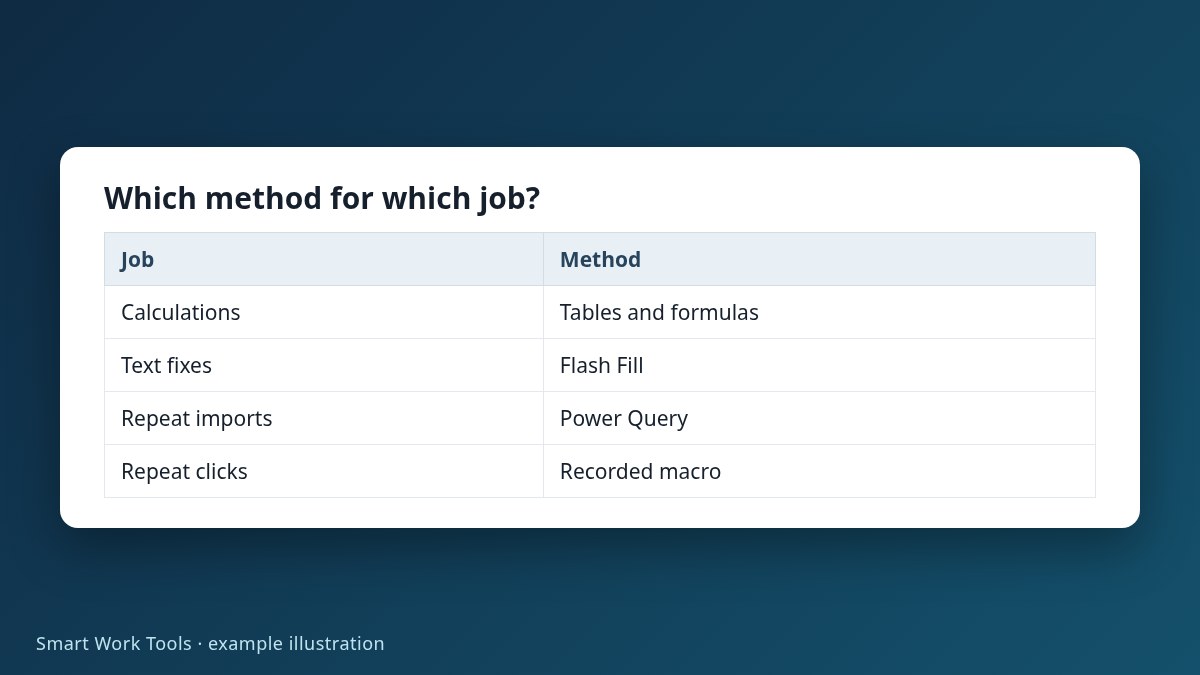
Excel automation guide: which method to use
Match the method to the job. Use tables and formulas for calculations, Flash Fill for quick text fixes, Power Query for repeat imports, and macros for repeat clicks. Our Gantt chart in Excel guide uses several of these together.
Excel automation tips: common questions
Do I need to know VBA to automate Excel?
No. Tables, formulas, Flash Fill, Power Query and recorded macros need no hand-written code.
Are Excel macros safe?
Your own macros are fine, but only enable macros in files from people you trust.
Can AI help automate Excel tasks?
An AI chat assistant can suggest formulas or macro code. Test everything on a copy of your file. See our prompt guides for how to write clear requests.
Related guides on Smart Work Tools
Track work in a task tracker and stay organized with conditional formatting.