
If you see clients by appointment, a simple schedule can replace a booking app. The risk is a double booking. This template helps you catch the obvious ones. The clients in the sample are made up.
How the template works
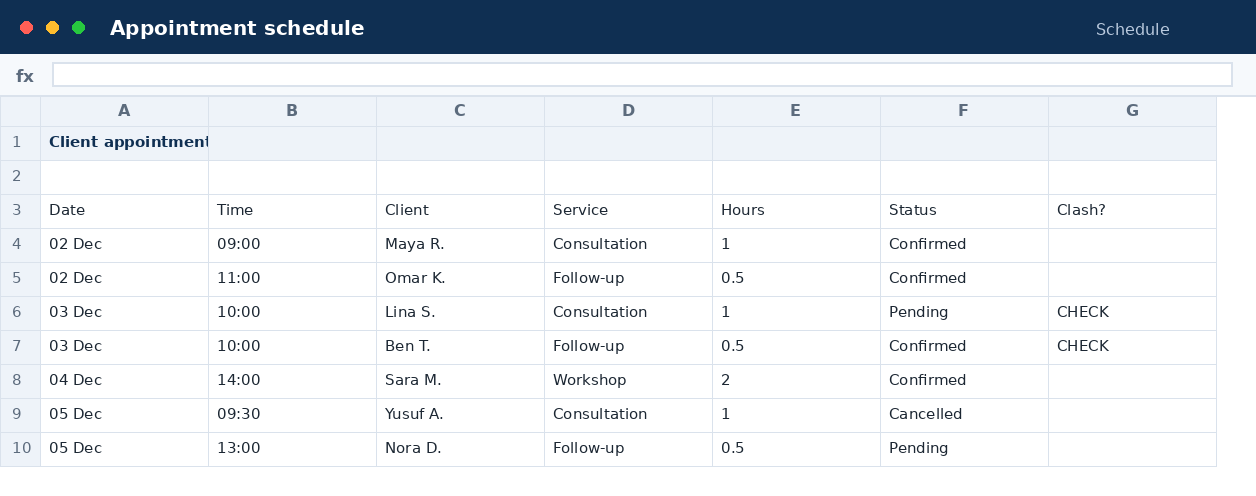
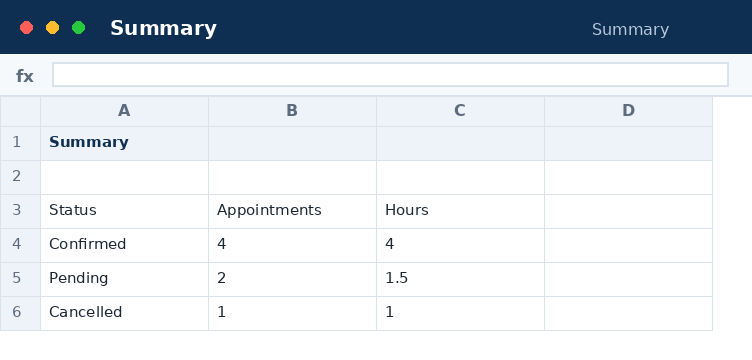
The Schedule sheet has Date, Time, Client, Service, Hours, Status and a Clash? column. Clash? is =IF(AND(F4<>"Cancelled",COUNTIFS($A$4:$A$200,A4,$B$4:$B$200,B4,$F$4:$F$200,"<>Cancelled")>1),"CHECK",""). It shows CHECK when two bookings that are not cancelled share the same date and start time. In the sample, Lina and Ben are both booked for 10:00 on 3 December. The Summary sheet counts appointments and sums hours per status: 4 confirmed (4 hours), 2 pending (1.5 hours) and 1 cancelled.
A limit to know about
The check compares start times only. It will not notice a 2-hour workshop at 14:00 that overlaps a 15:00 appointment. For longer sessions, look at the day yourself.
How to use it in Google Sheets
1. Download the xlsx and choose File > Import. 2. Replace the sample appointments. 3. Use the statuses Confirmed, Pending and Cancelled. 4. Write times the same way each time, such as 09:00. 5. Check Clash? whenever you add a booking.
Related
Plan your own week with the weekly planner template. Bill clients with the free invoice template for Google Sheets. Track new leads in the sales pipeline tracker.
Download the free template
The bottom line
A shared sheet is enough for a small practice. If you take many bookings online, a booking tool will save more time.