

A weekly planner works because it is small. One page, one week, a handful of tasks per day. The tasks in the sample are made up.
How the template works
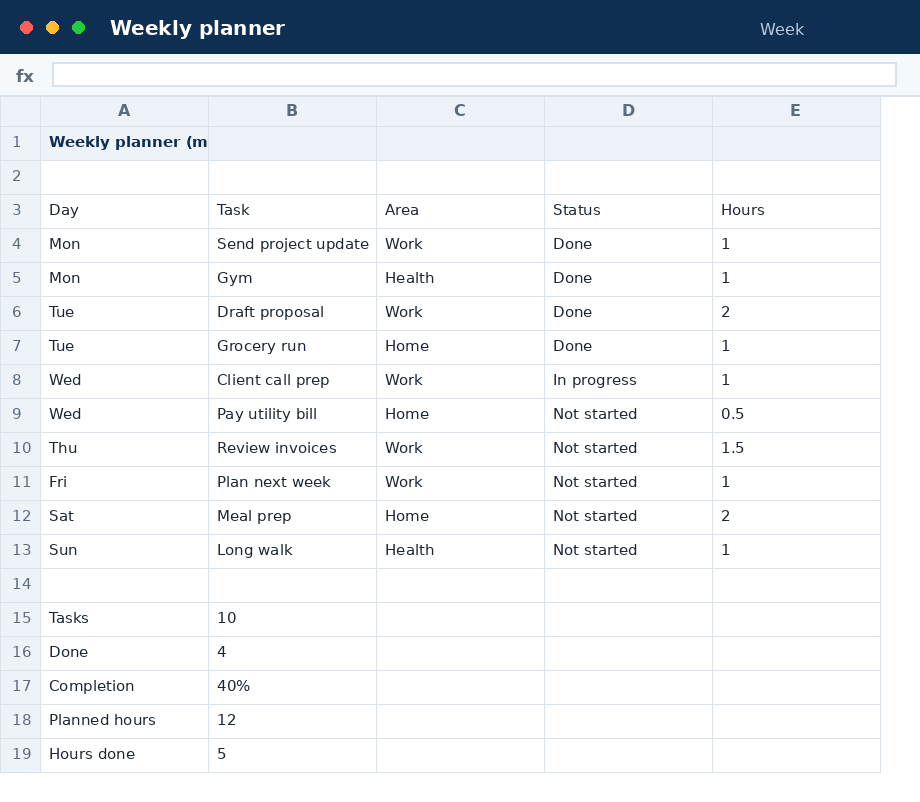
The Week sheet has columns for Day, Task, Area, Status and Hours. Below the list, a summary counts tasks with =COUNTA(), done tasks with =COUNTIF(D4:D13,"Done"), completion with =IF(B15=0,0,B16/B15), planned hours with =SUM() and finished hours with =SUMIF(). In the sample, 4 of 10 tasks are done (40%), and 5 of 12 planned hours are finished.
How to use it in Google Sheets
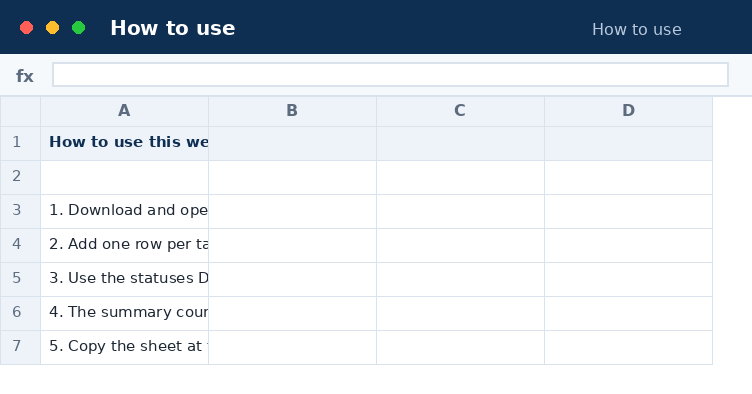
1. Download the xlsx and choose File > Import. 2. On Sunday evening or Monday morning, add the week's tasks. 3. Use three statuses: Done, In progress and Not started. 4. Update the status as you go. 5. Make a copy of the tab for the next week.
Tips for planning a week
Plan fewer hours than you have. In the sample, 12 hours are planned across seven days, which leaves room for surprises. Put the one task that matters most early in the week. If a task slips twice, either break it down or drop it.
Related
For bigger efforts, use the project management template for Google Sheets. Looking for work? Try the job tracker. To plan money for the week, see the family budget template.
Download the free template
The bottom line
Keep it short and review it daily. A planner you open every morning beats a detailed one you forget.