
You do not need a paid project tool to run a small project. A spreadsheet with the right five columns and two formulas covers most of what a team of two to ten needs: who owns what, when it is due, and what is slipping. Below is our free project management template for Google Sheets, what it tracks, and how to use it.
What the template does
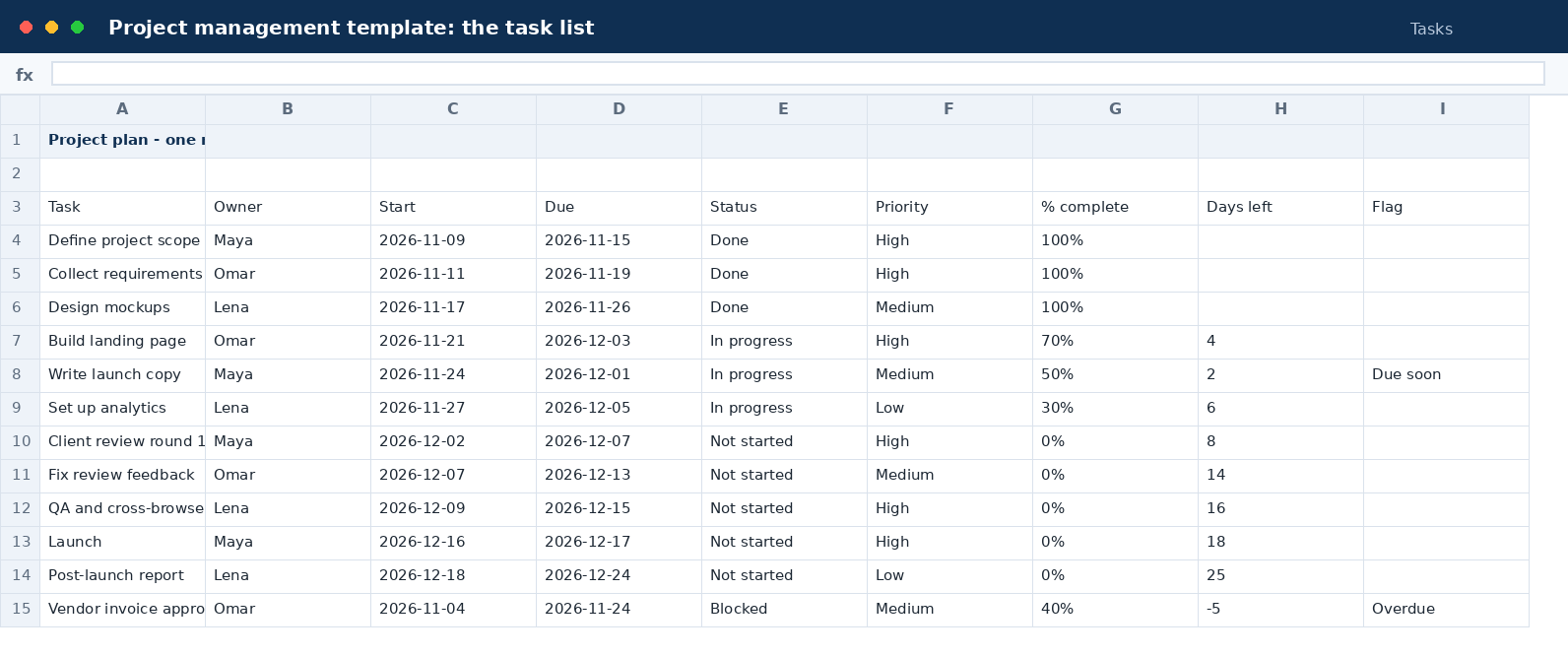
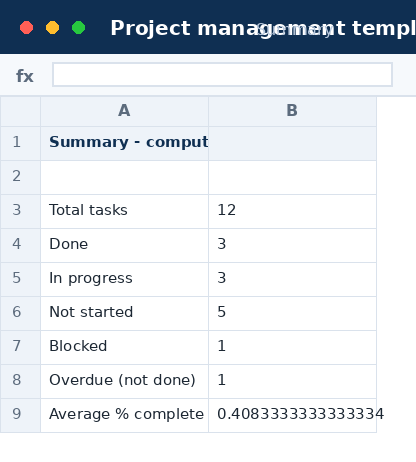
The workbook has three sheets. Tasks is the plan: task, owner, start, due, status, priority and % complete, with 12 sample rows. Two formulas do the watching: Days left runs =IF(OR(D4="",E4="Done"),"",D4-TODAY()) and Flag marks any open task as Overdue or Due soon (three days or fewer). Summary counts tasks by status with COUNTIF and shows the overdue count and average completion. How to use is the quick-start guide built into the file.
How to use this project management template in Google Sheets
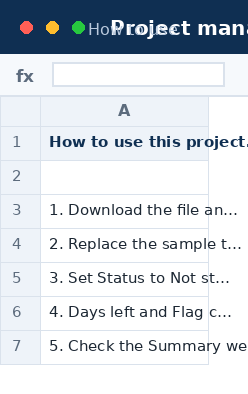
1. Get the file. Download the xlsx below, then in Google Sheets use File > Import > Upload. 2. Replace the sample tasks with yours. 3. Use the four status words exactly (Not started, In progress, Done, Blocked); the Summary counts those words. 4. Leave the formulas alone. Days left and Flag calculate from the due date. 5. Open the Summary weekly and talk about the Overdue and Blocked numbers first.
Why track Blocked separately
Most trackers have Not started, In progress and Done. Adding Blocked changes the weekly conversation: a blocked task is not late because of effort, it is waiting on something, and that something usually needs a decision from someone else. Keeping it as its own status makes those waits visible instead of letting them hide inside In progress.
Common questions
Is this a Gantt chart? No. It is a task list with dates, which is the part most small projects actually use. Start and due dates are there if you want to add a timeline later.
Can I use it for money-side tracking too? Pair it with the free Google Sheets budget template for project costs, or the expense tracker for day-to-day spending.
What about billing clients for the work? Track unpaid invoices with the accounts receivable template for Excel.
Download the free template
The bottom line
A project plan only helps if it is current. Keep the list short, put one name on every task, and let the Flag column tell you where to look first.