
Sending invoices is only half the job. You also need to know which ones are unpaid and how late they are. The clients and amounts in the sample are made up.
How the template works
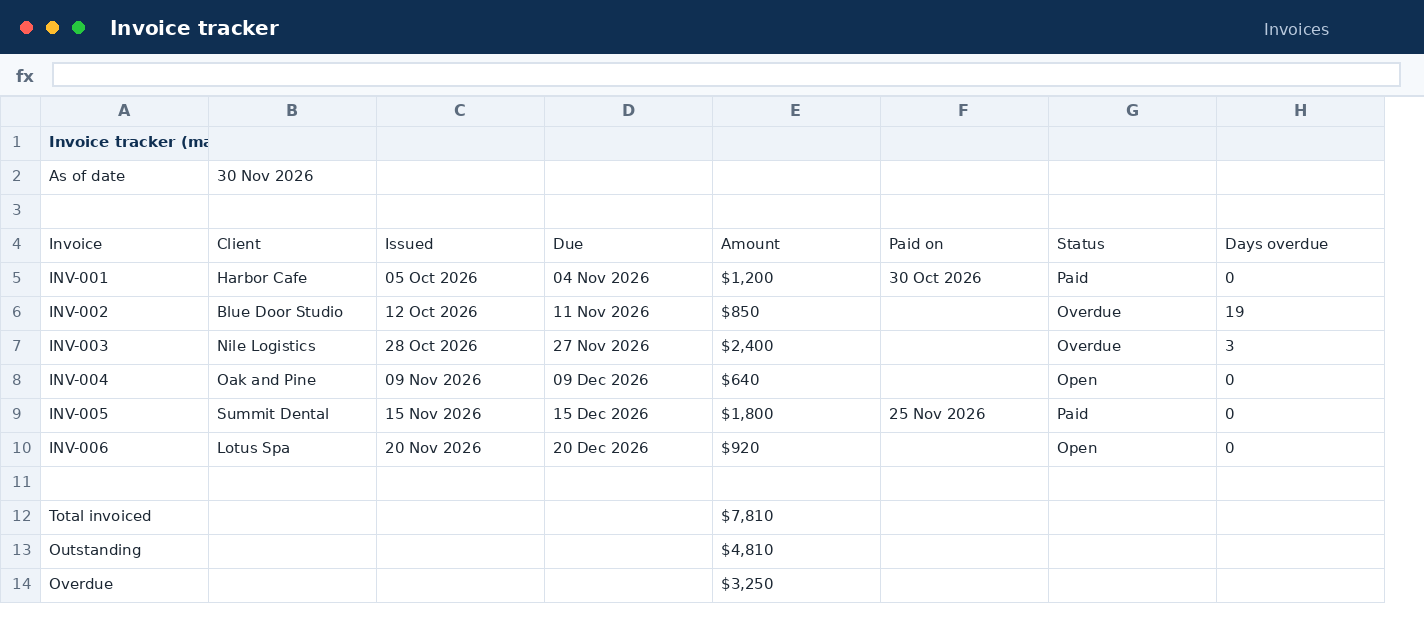
The Invoices sheet has an as-of date in B2, then one row per invoice with Invoice, Client, Issued, Due, Amount, Paid on, Status and Days overdue. Status is =IF(F5<>"","Paid",IF($B$2>D5,"Overdue","Open")). Days overdue is =IF(G5="Overdue",$B$2-D5,0). Totals below use =SUM() and =SUMIF(). With an as-of date of 30 November 2026, the sample shows $7,810 invoiced, $4,810 outstanding and $3,250 overdue across two late invoices.
How to use it in Google Sheets
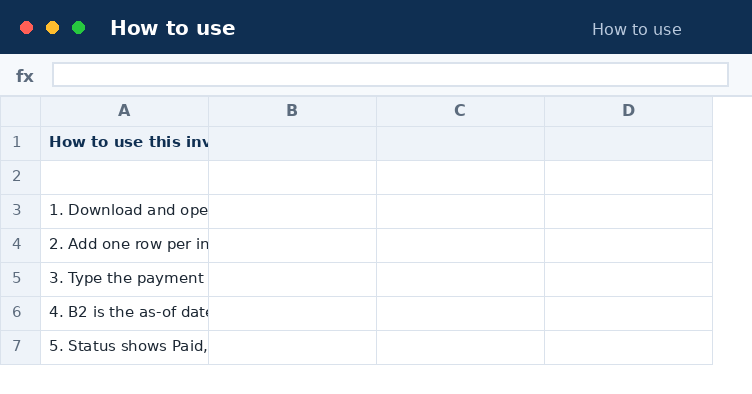
1. Download the xlsx and choose File > Import. 2. Replace the sample invoices. 3. Type the payment date in Paid on when money arrives. 4. In your own copy, replace the date in B2 with =TODAY() so statuses update every day. 5. Sort by Status to see overdue invoices first.
Chasing late invoices
Follow up the day after the due date, politely and with the invoice attached. A short reminder works for most clients. Note each follow-up so you remember who you contacted. Agree payment terms in writing before you start work.
Related
Need to create the invoice first? Use the free invoice template for Google Sheets. For larger customer lists, see the accounts receivable template. If volume grows, compare invoicing software for small business.
Download the free template
The bottom line
Check it once a week. Catching a late invoice after three days is much easier than after three months.