
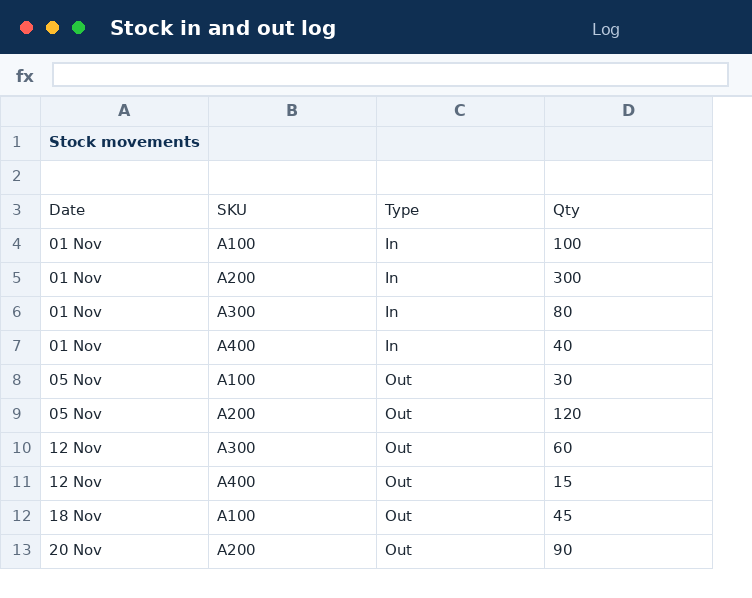
Typing a new stock number over the old one loses the history. A log keeps it. Each delivery or sale is one row, and the stock level is calculated from the log, so you can always see how you got there. The items and quantities in the sample are made up.
How the inventory management template works
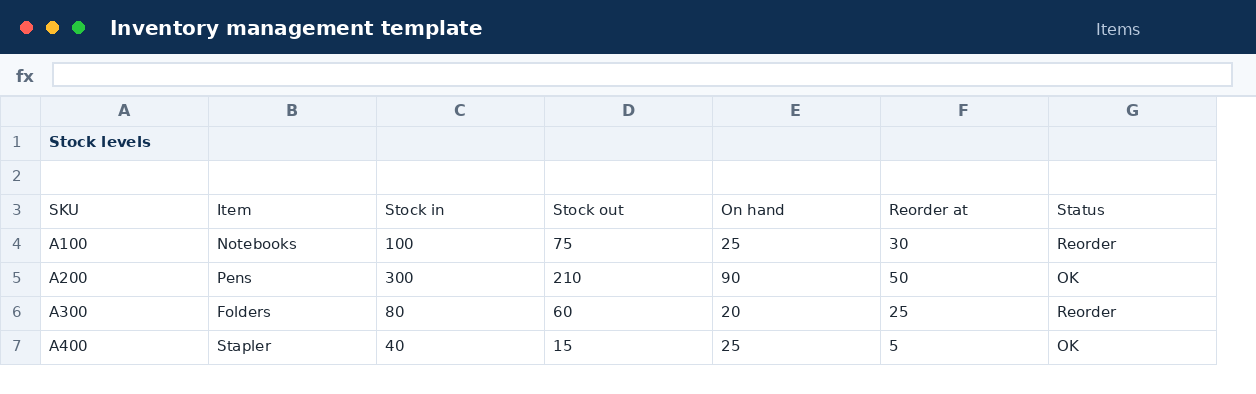
There are two sheets. The Log sheet has Date, SKU, Type (In or Out) and Qty. The Items sheet lists each SKU with its reorder level. Stock in is =SUMIFS(Log!$D$4:$D$500,Log!$B$4:$B$500,A4,Log!$C$4:$C$500,"In"), and Stock out is the same with "Out". On hand is =C4-D4. Status is =IF(E4<=F4,"Reorder","OK").
In the sample, notebooks have 100 in and 75 out, so 25 are on hand against a reorder level of 30, and they show Reorder. Pens have 300 in and 210 out, leaving 90, which is OK. Folders have 20 on hand against 25 and show Reorder. The stapler has 25 on hand against 5 and is OK.
How to use it in Google Sheets
1. Download the xlsx and open it with Google Sheets. 2. List your items and reorder levels on the Items sheet. 3. Add a Log row every time stock arrives or leaves. 4. Type In or Out exactly, and keep SKUs spelled the same, or the totals will miss them. 5. Check Status before you place an order.
Related
Want a simpler stock list? See the Google Sheets inventory template. In Excel, try the inventory template with reorder alerts, then raise orders with the purchase order template.
Download the free template
The bottom line
Log movements the same day. A stock count that is a week behind does not tell you when to reorder.