
=AI("prompt", range) in a cell and point it at your data. Google lists summarizing as one of its uses. Always check the result against the numbers.A sheet full of comments is slow to read. Google documents the AI function as a way to summarize information, so it can turn a pile of comments into a few lines. This post shows how to use it to summarize spreadsheet data in Google Sheets, with a sample file. The customers and comments are made up.
What you need first
Google's help page says the AI function requires an eligible Google Workspace or Google AI plan. If your account does not have it, the sample file still works: the Theme column and the Summary sheet use normal formulas.
How to summarize spreadsheet data with the AI function
1. Put your data in a table, with comments in one column and ratings in another. 2. In an empty cell, enter an AI function. Google says you can use either =AI() or =Gemini(). 3. Write a clear prompt and pass the range you want summarized, for example:
=AI("List in bullet points the main themes of these comments.", B4:B9)
4. Click Generate and Insert. Google notes that the inserted content is attributed to you in version history.
Google's own examples under "Summarize input cell or range" include a one-sentence summary of a customer's feedback from a range such as A2:D2. The prompts in the sample file follow that pattern.
Check the summary against the numbers
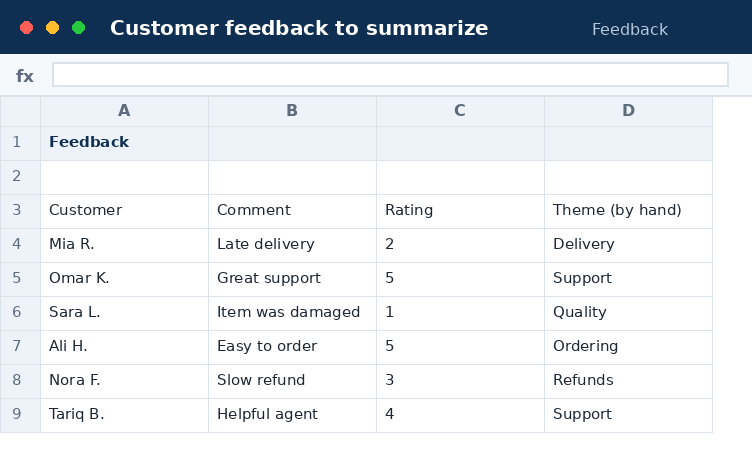
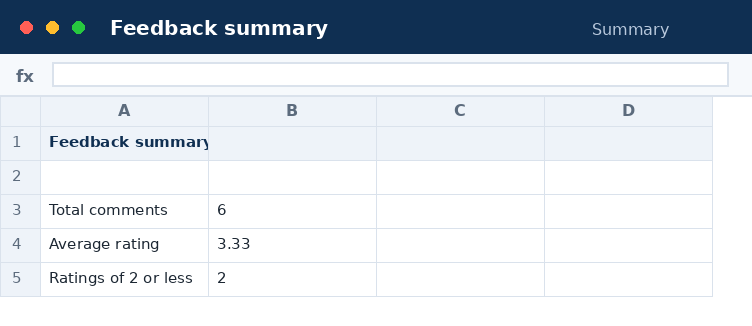
A summary can sound confident and still be wrong, so compare it with the data. In the sample, six comments have an average rating of 3.33, and two of them are rated 2 or less (late delivery and a damaged item). The Summary sheet shows that with =ROUND(AVERAGE()) and =COUNTIF(). If an AI summary calls the feedback "mostly positive" or misses the damaged item, you have caught a problem before sharing it.
A second option: the Gemini side panel
Google also describes a Gemini side panel in Sheets. When you open a spreadsheet that has data, the panel shows a summary of it, and you can ask it to summarize the spreadsheet. This needs an eligible plan too.
Tips and cautions
Pass only the range you want summarized. If you need to combine two separate ranges in one prompt, Google says you can join them in the prompt text, but then you do not get a refresh prompt when those ranges change, so regenerate by hand. Do not send customer data to an AI service unless your policy allows it.
Related
Sort bank lines the same way with categorize expenses with the AI function. Track work with the project management template, or plan money with the free Google Sheets budget template.
Download the free file
The bottom line
Use the AI function for the wording and your own formulas for the facts. If the two disagree, trust the formulas and fix the prompt.
Sources: Google Docs Editors Help, "Use the AI function in Google Sheets" (support.google.com/docs/answer/15877199) and "Collaborate with Gemini in Google Sheets" (support.google.com/docs/answer/14356410), both checked November 29, 2026.