
Most small teams build the weekly rota in a hurry and find the overtime on payday. A sheet that adds the hours as you type catches it earlier. All names, hours and pay rates below are made up for the example.
How the employee shift schedule works
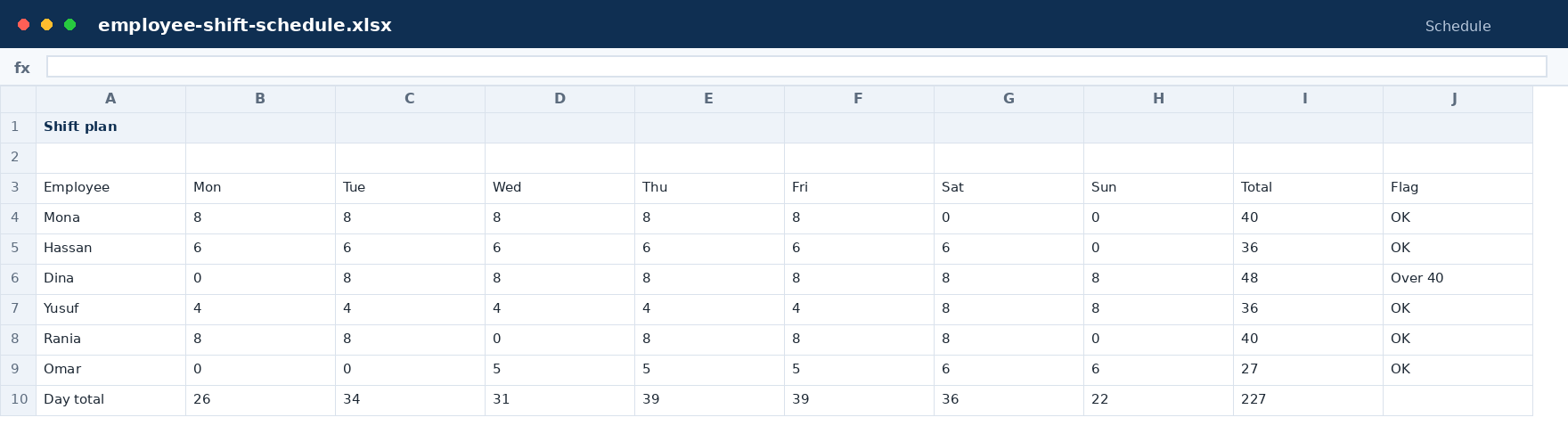
The Schedule sheet has one row per person and one column per day, Monday to Sunday. Enter the hours worked, or 0 for a day off. Total in column I is =SUM(B4:H4). The Flag in column J is =IF(I4>40,"Over 40","OK"). The Day total row adds each column, so you can see which days are thin or heavy.
In the sample, six people work 227 hours in the week. Dina works 48 hours and is the only one flagged Over 40. Thursday and Friday are the busiest days at 39 hours each, and Sunday is the quietest at 22.
Labor cost on the second sheet
The Labor cost sheet pulls each person's hours from the Schedule and multiplies them by an hourly rate: =ROUND(B4*C4,2). Mona works 40 hours at $18.00, so her week costs $720.00. The sample total is $3,790.00 for 227 hours. Rates here are examples only.
How to use it
1. Download the xlsx and open it in Excel. 2. Replace the sample names with your team. 3. Enter hours for each day. 4. Type the real hourly rates on the Labor cost sheet. 5. Copy the file each week and clear the hours. The 40-hour flag is only an example, so check the overtime rules where you work and change the number in the formula if they differ.
Related
Turn the hours into pay with the payroll sheet template. Track holidays with the time off tracker, or browse more Excel templates for small business.
Download the free schedule
The bottom line
Fill in the hours first and read the flags before you share the schedule. It takes a minute and saves a surprise later.